For MTDify Starter & MTDify Local Edition
This guide covers the most common issues when downloading, opening, or using MTDify on Windows.
MTDify runs as a simple Windows application.
You download a ZIP → extract it → double-click the .exe.
No installation. No terminal. No Python. No commands.
The App Won’t Open
❌ Symptom
Double-clicking the EXE does nothing.
✔ Fix
-
Make sure you extracted the ZIP file first.
Running inside the ZIP will not work. -
Open the extracted folder and double-click:
-
MTDifyStarter.exe (Starter Edition)
-
MTDifyLocal.exe (Local Edition)
-
Ensure the EXE stays inside the MTDifyStarter or MTDifyLocal folder.
Do not move the EXE out of the folder. -
Optional: create a desktop shortcut
• Right-click the EXE → Send to → Desktop (create shortcut)
The Browser Doesn’t Open Automatically
❌ Symptom
Nothing happens after opening the EXE.
✔ Fix
Open your browser manually and go to:
This is your private offline dashboard.
If the app is running, the page will load immediately.
The Browser Shows an Error Page
This usually means the EXE was closed accidentally.
✔ Fix
-
Close the browser
-
Re-open the EXE
-
Wait 2–3 seconds
-
Revisit: http://127.0.0.1:8000
All My Data Has Disappeared
Your bookkeeping data is stored in:
db.sqlite3
(in the same folder as the EXE)
If the dashboard is empty, you likely opened a new installation folder.
✔ Fix
-
Close MTDify
-
Find your previous version folder
-
Copy db.sqlite3
-
Paste it into the new version folder (replace the blank one)
-
Open the EXE again
Your data will reappear instantly.
My Backups Are Missing
MTDify Local Edition automatically creates a backup once per day when opened.
They appear in a folder named:
backups
Example:
-
db-2025-01-10.sqlite3
-
db-2025-01-11.sqlite3
✔ Fix
-
Close the app
-
Open it again
-
Check the backups folder after one minute
If you still don’t see backups after a week of use, contact support.
(Starter Edition does not include automatic backups.)
I Forgot My Password
Both Starter and Local Edition include a default login:
Email: demo@example.com
Password: demo123
✔ If you still have the default user
-
Log in using demo@example.com
-
Visit: http://127.0.0.1:8000/admin
-
Edit your user
-
Enter a new password
-
Save
✔ If you deleted the default user
Contact support for recovery options.
Receipts Are Not Showing (Local Edition Only)
Receipts are stored here:
MTDifyLocal/media/receipts/
✔ Fix
Make sure you did NOT:
-
Move the EXE out of the folder
-
Rename the media folder
-
Delete any receipt files
If you moved the EXE, move it back into the original folder.
Pages Look Broken or Styling Looks Odd
This can happen if files were accidentally edited or partially overwritten.
✔ Fix
-
A hard refresh will help. F5 (Windows) is the refresh button but Ctrl + F5 is called a hard refresh. It ensures the page returns to how it should look rather than what you are seeing. You can hit Ctrl +F5 every time you click to open the dashboard if you want. It takes 2 seconds.
The look of the site will return to normal.
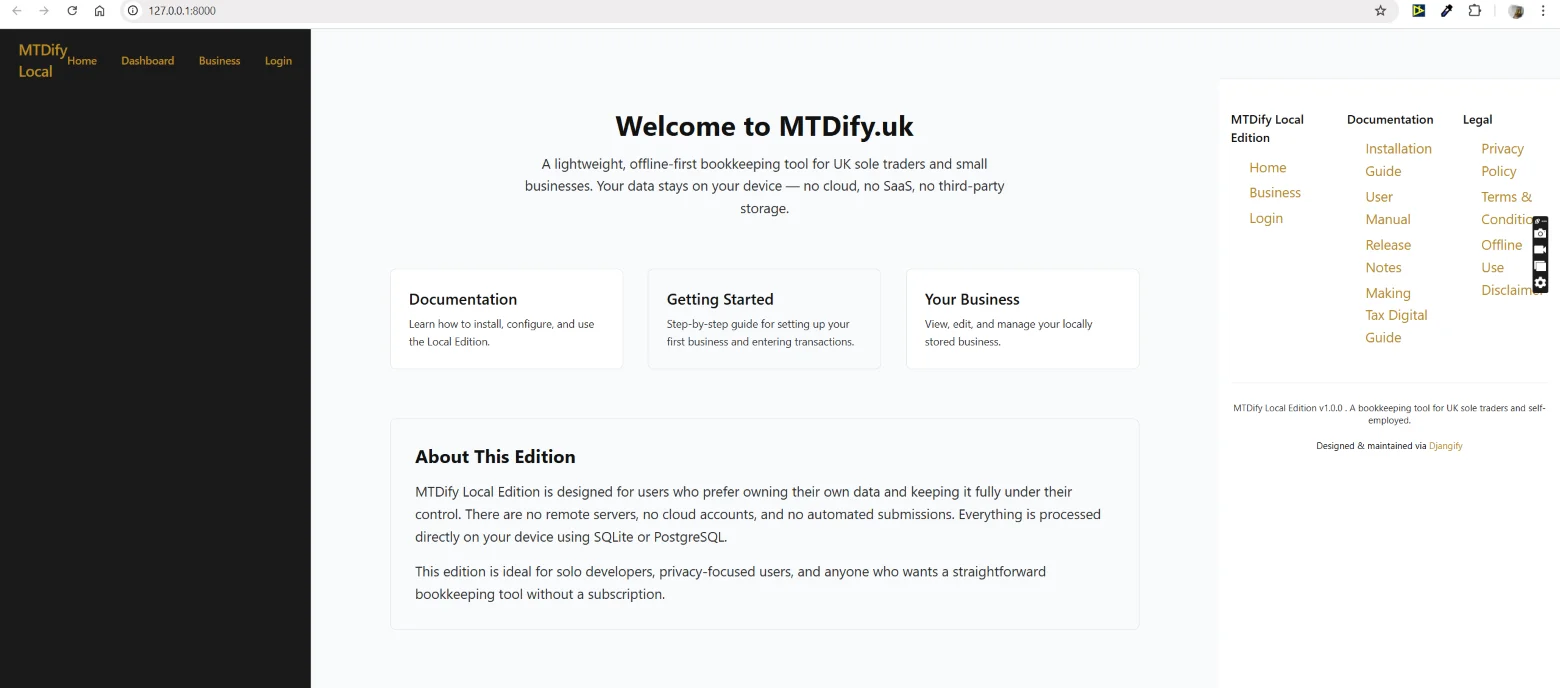
Here are a couple of examples of what it might look like when you first open it - this first one shows the menu in the wrong place.
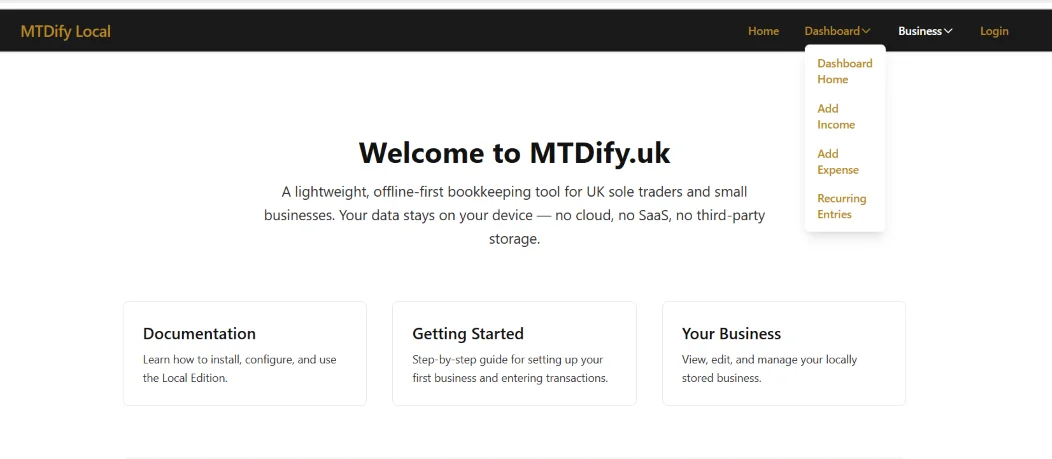
This second one looks ok but the dropdown menu isn't quite right - it is not as bad as the first one but still happens
This is what your site and drop down menu should look like
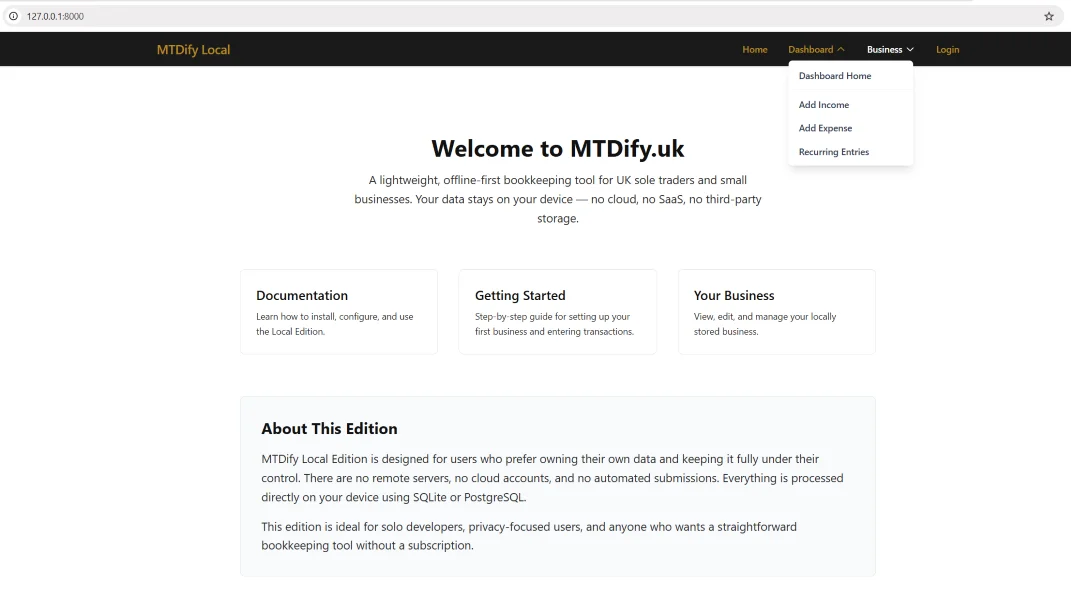
So just get into the habit of giving the page a hard refresh every now and again. Ctrl + F5
✔ Additional Fix (more work and really not necessary!)
-
Download a fresh copy of MTDify
-
Extract it into a new folder
-
Copy db.sqlite3 from your old folder
-
Paste it into the new folder
-
Open the EXE
The UI will return to normal.
The App Opens But the Page Is Blank
This is almost always browser caching.
✔ Hard Refresh
-
CTRL + F5 (Windows)
If needed, fully close the browser and reopen it.
MTDify Is Running Slowly
Possible causes:
-
Very large database
-
Many receipt images
-
Old hardware
-
Running from OneDrive or cloud folders (not recommended)
✔ Fix
-
Restart the app
-
Move large receipt archives to an external folder
-
Keep your main db.sqlite3 below ~100MB
-
Store the folder on your local Windows drive, NOT in OneDrive/Dropbox
“Nothing Happens When I Click” (Usually Windows Security)
✔ Fix
-
Right-click the EXE
-
Click Properties
-
At the bottom, if you see “This file came from another computer”, click Unblock
-
Click Apply
-
Open the EXE again
Updating the Software (Local Edition)
When a new version comes out:
✔ Correct process
-
Download the new ZIP
-
Extract it into a new folder
-
Copy db.sqlite3 from your old version
-
Paste it into the new folder
-
Open the EXE
Never overwrite the old folder.
Starter Edition-Specific Issues
❌ Data missing
You opened a new Starter folder.
Copy your old db.sqlite3 into the new Starter folder.
❌ Lost password
Use the default login:
demo@example.com / demo123
❌ EXE not opening
Extract the ZIP.
Do not open the EXE inside the ZIP preview window.
If You Still Need Help
Support is available through your MTDify.uk account.
Open a support ticket and include:
-
Your Windows version
-
Which edition (Starter or Local)
-
A screenshot if possible
-
A short description of the issue
We reply as quickly as possible.